
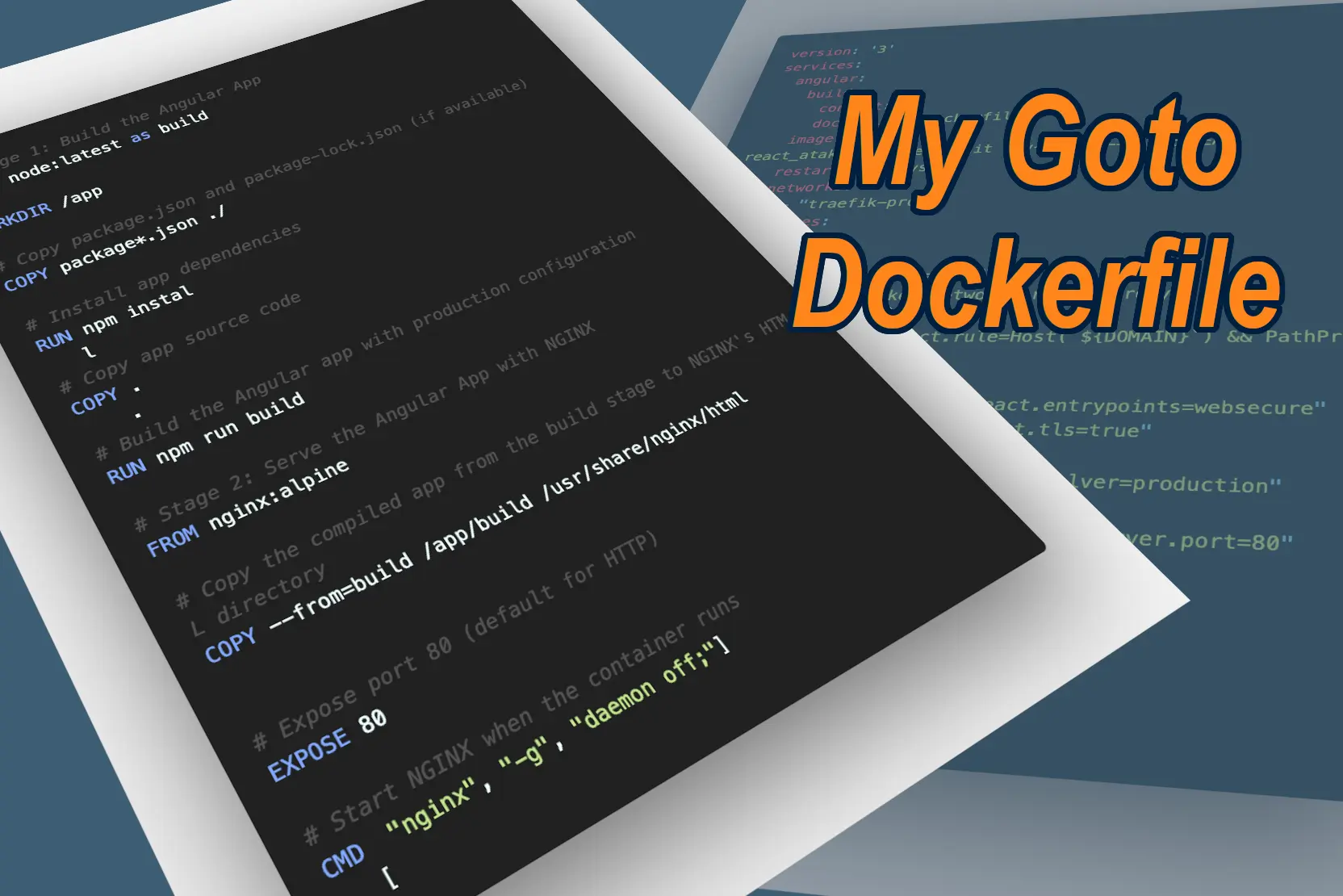
Maximizing Docker's Potential: Multi-Staged Builds and Docker-Compose Simplified
Once you delve into the intricacies of Docker, you’ll uncover a world of powerful possibilities. One such feature is multi-staged builds using Dockerfiles. This game-changing capability enables you to break free from the constraints of a single Docker image during the build process. In my case, it proved invaluable for integrating Portainer’s GitOps Update functionality. But before we dive too deep, let’s start by examining the Dockerfile.
Dockerfile
# Stage 1: Build the App
FROM node:latest as build

# Set directory
WORKDIR /app

# Copy package.json and package-lock.json (if available)
COPY package*.json ./

# Install app dependencies
RUN npm install

# Copy app source code
COPY . .

# Build the app
RUN npm run build

# Stage 2: Serve the Angular App with NGINX
FROM nginx:alpine

# Copy the compiled app from the build stage to NGINX's HTML directory
COPY --from=build /app/build /usr/share/nginx/html

# Expose port 80 (default for HTTP)
EXPOSE 80

# Start NGINX when the container runs
CMD ["nginx", "-g", "daemon off;"]
Of course, this Dockerfile isn’t a one-size-fits-all solution. It’s tailored for my specific needs: building and serving files with Nginx. Your project may require different configurations, such as special build parameters or, if you’re working on an Angular project, the use of ‘ng’. It’s crucial to understand the ‘as’ keyword in the ‘FROM’ command because it influences how you can reference the build stage.
The rest of the Dockerfile sets up a basic Nginx server, with ‘index.html’ and other files residing in the ‘/usr/share/nginx/html/’ folder, hosted on port 80.
In the file, I need to specifiy FROM node:latest as build, with the as something part, I cannot later reference it.
Later, when I want to grab the built files from the node image once I am in the nginx image, the command COPY –from=build /app/build /usr/share/nginx/html is your classical COPY command where with the from flag we specify which image (in our Dockerfile) we would like to copy from.
The rest of the Dockerfile is a basic Nginx server where the index.html and other files are in the /usr/share/nginx/html/ folder and is hosted on port 80.
Docker Compose for Effortless Stack Creation
The ‘docker-compose.yml’ file is equally vital, making stack creation a breeze. It also plays a crucial role in my setup, where I use a Traefik reverse proxy to compartmentalize my services.
version: '3'
services:
  angular:
    build:
      context: .
      dockerfile: Dockerfile
    image: react_atakanonol_dev:$(git rev-parse --short HEAD)
    restart: "always"
    networks:
      - "traefik-proxy"
    volumes:
      - .:/app
    labels:
      - "traefik.enable=true"
      - "traefik.docker.network=traefik-proxy"
      - "traefik.http.routers.react.rule=Host(`${DOMAIN}`) && PathPrefix(`/`)"
      - "traefik.http.routers.react.entrypoints=websecure"
      - "trafeik.http.routers.react.tls=true"
      - "traefik.http.routers.react.tls.certresolver=production"
      - "traefik.http.services.react.loadbalancer.server.port=80"

networks:
  traefik-proxy:
    external: true
This file provides insights into the labels and settings required to connect this stack to Traefik. It showcases how effortlessly every container can be routed through a reverse proxy. Additionally, it intelligently tags images with the short hash value of the latest commit on the head branch, making it easy to track the latest version in Portainer.
Don’t forget to include your .env file in the directory and assign a value to the ‘DOMAIN’ variable. This is a crucial step in ensuring the smooth functioning of your Docker environment.
Now, you’re ready to harness the full potential of Docker and Docker Compose for your projects.